 League of Legends
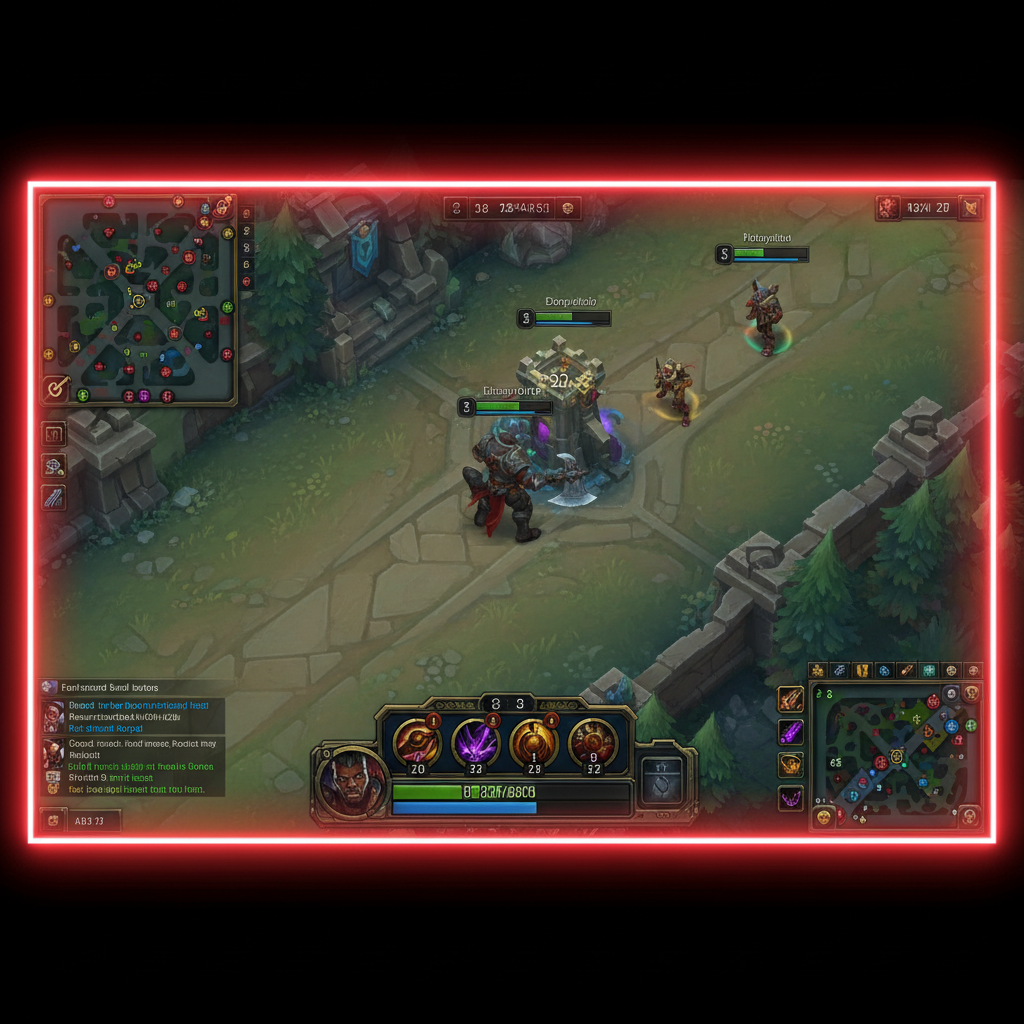
That red border on your League of Legends screen is the Mouse Screen Lock feature, and pressing F9 removes it instantly. Here’s everything you need to know if that doesn’t work.
Last updated: April 14, 2026, patch 26.7
What Is the Red Border in League of Legends?
The red border in League of Legends is a built-in feature called Mouse Screen Lock. It confines your mouse cursor to the game window so it can’t drift onto a second monitor during a match. The red outline around your screen is just Riot’s visual indicator telling you the lock is active. Press F9 to toggle it off, and the border vanishes. This isn’t a bug, a glitch, or your GPU dying.
I panicked the first time I saw it. Mid-teamfight, red outline pops up, camera stops responding to edge scroll, and I couldn’t move my screen to follow a Jinx chasing down my bot lane. Died three times in two minutes before I alt-tabbed and Googled the fix. Turns out I’d fat-fingered F9 during a flash combo. Classic.
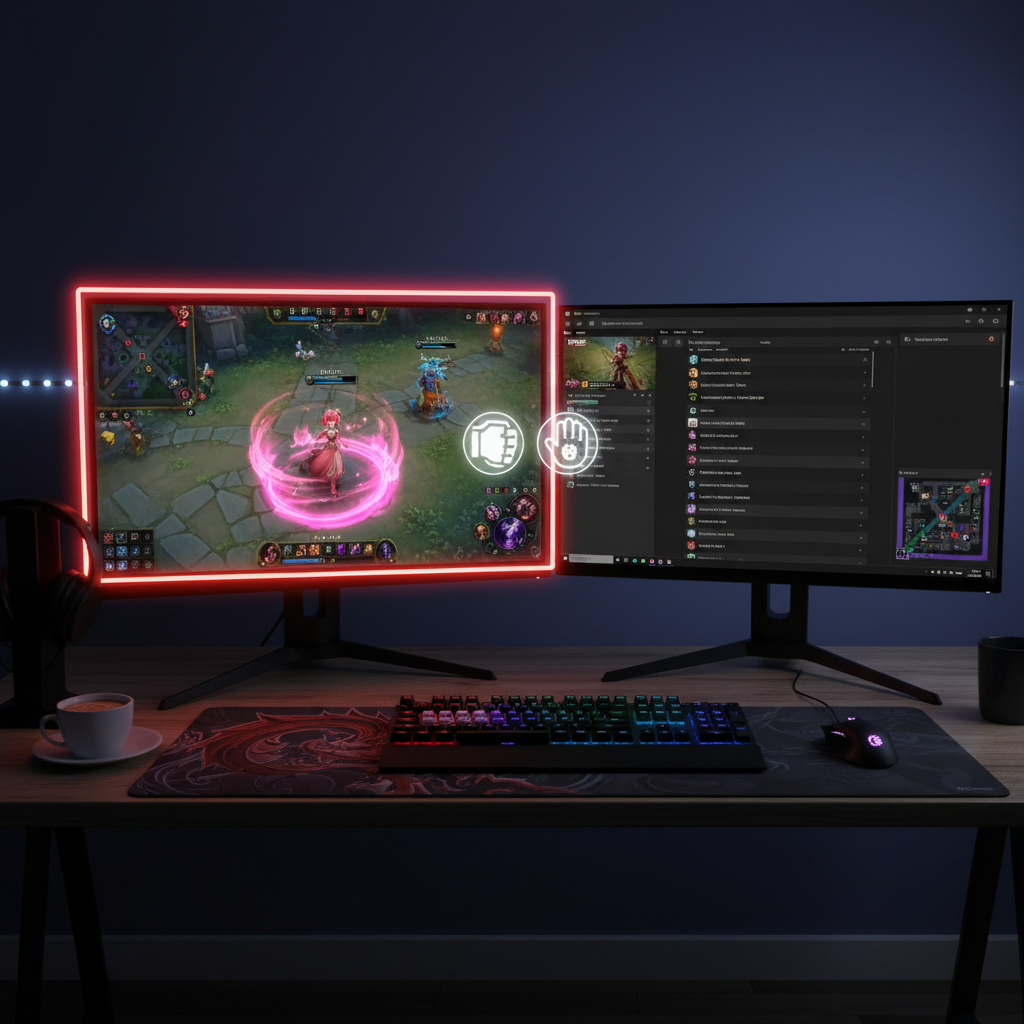
The feature exists because multi-monitor players sometimes lose their cursor on a second screen while flicking for a skill shot. Riot added Mouse Screen Lock as a quick toggle so you can trap the cursor when you need focus and release it when you want to check Discord or your stream chat. The official League of Legends hotkey documentation lists it under the Menus subsection of Additional Hotkeys.
How to Get Rid of the Red Border in League of Legends
The fastest fix takes one keystroke. Literally one.
Press F9. That’s the default hotkey for Toggle Mouse Screen Lock. Hit it once, the red border disappears, and your cursor is free again. Hit it again and the lock comes back. No restart needed, no settings menu, nothing.
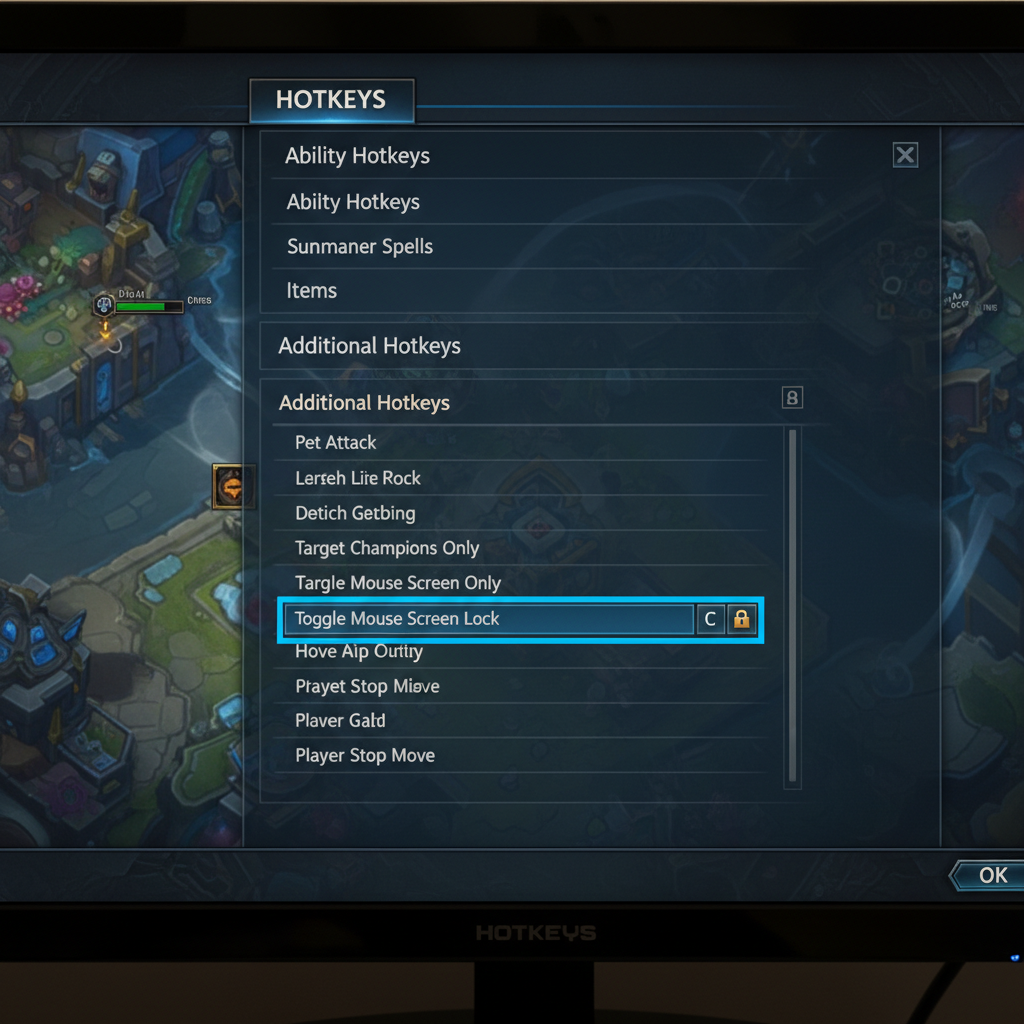
If F9 doesn’t work for you, somebody (maybe you, maybe your cat) rebound the key. Here’s how to fix that:
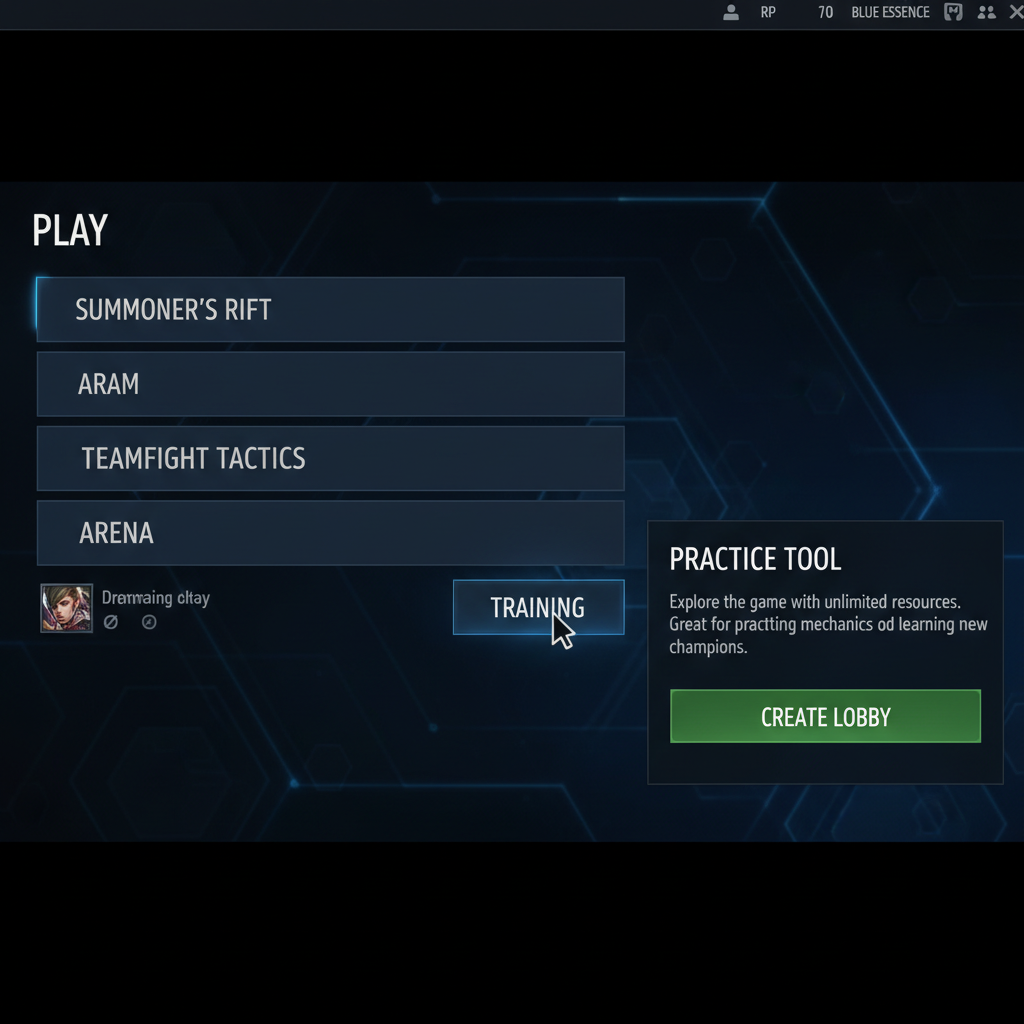
- Open a Practice Tool game (you can’t access this setting from the client)
- Press Escape to open the settings menu
- Go to Hotkeys > Additional Hotkeys > Menus
- Find Toggle Mouse Screen Lock
- Click the keybind field and assign a new key
- Save and close
I rebound mine to F10 after my third accidental activation. My F9 key sits right where my pinky lands when I’m stretching for abilities, and hitting it mid-fight is a death sentence in ranked. Since moving it, zero accidental toggles across 40+ games.
Why Does the Red Border Break Camera Movement?
This trips up a lot of players. When Mouse Screen Lock activates, it doesn’t just show a red outline. It changes how your cursor interacts with screen edges.
Normally, pushing your mouse to the edge of the screen pans the camera in that direction. That’s edge scrolling. Mouse Screen Lock kills this entirely because the cursor physically can’t reach the true screen boundary. It hits an invisible wall at the game window border instead.
Locked camera players won’t notice a difference (the camera follows your champ anyway). But if you play unlocked, which most players above Gold do, losing edge scroll feels like playing with a broken mouse. I think Riot should add a visual warning in the settings menu explaining this side effect, because right now you have to figure it out yourself or read an article like this one.
If you’re still learning how ranked works in LoL, switching to unlocked camera early will save you a lot of pain. And making sure Mouse Screen Lock is off before your first placement game? Non-negotiable.
What If F9 Doesn’t Fix the Red Border?
Sometimes the red outline isn’t Mouse Screen Lock at all. Other culprits exist.
Third-party software overlays. OBS, Discord, Medal, and Lowkey have all been reported to cause red borders around LoL. The OBS community forum has an entire thread about the OBS-LoL mouse lock interaction. Try disabling your overlays one at a time to find the offender.
Resolution mismatch. If your in-game resolution doesn’t match your monitor’s native resolution, weird borders can appear. Go to Settings > Video and make sure your game resolution matches your display. Windowed and Borderless modes are especially prone to this.
Graphics driver issues. Outdated NVIDIA or AMD drivers can cause rendering glitches that look like a persistent border. Update through GeForce Experience or AMD Adrenalin.
Corrupted game files. Open the League client, click the gear icon in the top right, and select Initiate Full Repair. This takes a while but fixes file-level issues.
If you’ve tried every fix and you’re still stuck, sometimes starting on a fresh LoL smurf account can help isolate whether the problem is account-specific settings or a system-level issue.
Quick Reference: All Red Border Fixes
| Fix | When to use it | Time needed |
|---|---|---|
| Press F9 | First thing to try, always | 1 second |
| Rebind hotkey in Practice Tool | F9 doesn’t respond | 2 minutes |
| Disable overlays (OBS, Discord) | Border appears only when streaming | 1 minute |
| Match game resolution to monitor | Border shows in Windowed/Borderless | 1 minute |
| Update GPU drivers | Border persists across restarts | 5-10 minutes |
| Full repair via client | Nothing else works | 15-30 minutes |
Does the Red Border Affect Ranked Performance?
Directly? No. Indirectly? Absolutely.
Losing edge scroll in a ranked game means slower camera control. Slower camera control means worse map awareness. Worse map awareness means you’re getting flanked by the Evelynn you should’ve spotted 3 seconds earlier. I dropped 2 games in a row in my Plat promos before realizing Mouse Screen Lock was on. That’s LP I’m never getting back.
If you’re grinding ranked and want to make sure your settings aren’t holding you back, getting LoL rank boosting from players who’ve optimized every setting down to mouse polling rate can show you what clean gameplay actually looks like. Worth it just for the replay review.
FAQ
What does the red border in League of Legends mean?
The red border is the Mouse Screen Lock feature. It locks your cursor inside the LoL game window so it can’t escape to a second monitor. It’s not a bug, and Riot put it there on purpose for multi-monitor players.
How do I get rid of the red border in LoL?
Press F9 during a game. That’s the default toggle for Mouse Screen Lock. The red outline disappears instantly. If F9 doesn’t work, check your hotkey bindings under Settings > Hotkeys > Additional Hotkeys > Menus.
Why can’t I move my camera when the red border is showing?
Mouse Screen Lock traps your cursor inside the game window, which kills edge scrolling. You won’t be able to pan the map by pushing your mouse to the screen edge. Press F9 to unlock it, and your camera movement comes back immediately.
Can third-party apps cause the red border in League?
Yes. OBS, Discord overlays, and screen recording software can trigger a red outline that looks similar to Mouse Screen Lock. Try disabling overlays one by one to find the culprit. The OBS community forum has confirmed this interaction multiple times.
How do I rebind the Mouse Screen Lock key in LoL?
Open a Practice Tool game, hit Escape to open settings, go to Hotkeys > Additional Hotkeys > Menus, and find Toggle Mouse Screen Lock. Click the keybind field and press your preferred key. You can’t change this from the main client, only in-game.
The red border in League of Legends is one of those problems that takes 1 second to fix once you know the answer and 20 minutes of confused Googling if you don’t. Press F9, check your overlays if that doesn’t work, and get back to your game. If your settings are clean and you’re still losing LP, the issue might not be your screen border (it might be your screen awareness, and that’s a different fix entirely).