 League of Legends
You want to know how to uninstall League of Legends, and the process takes about five minutes if you do it right. Problem is, the standard uninstaller leaves behind gigabytes of leftover files that sit on your drive doing nothing.
Last updated: April 14, 2026, patch 26.7
How Do You Uninstall League of Legends Completely?
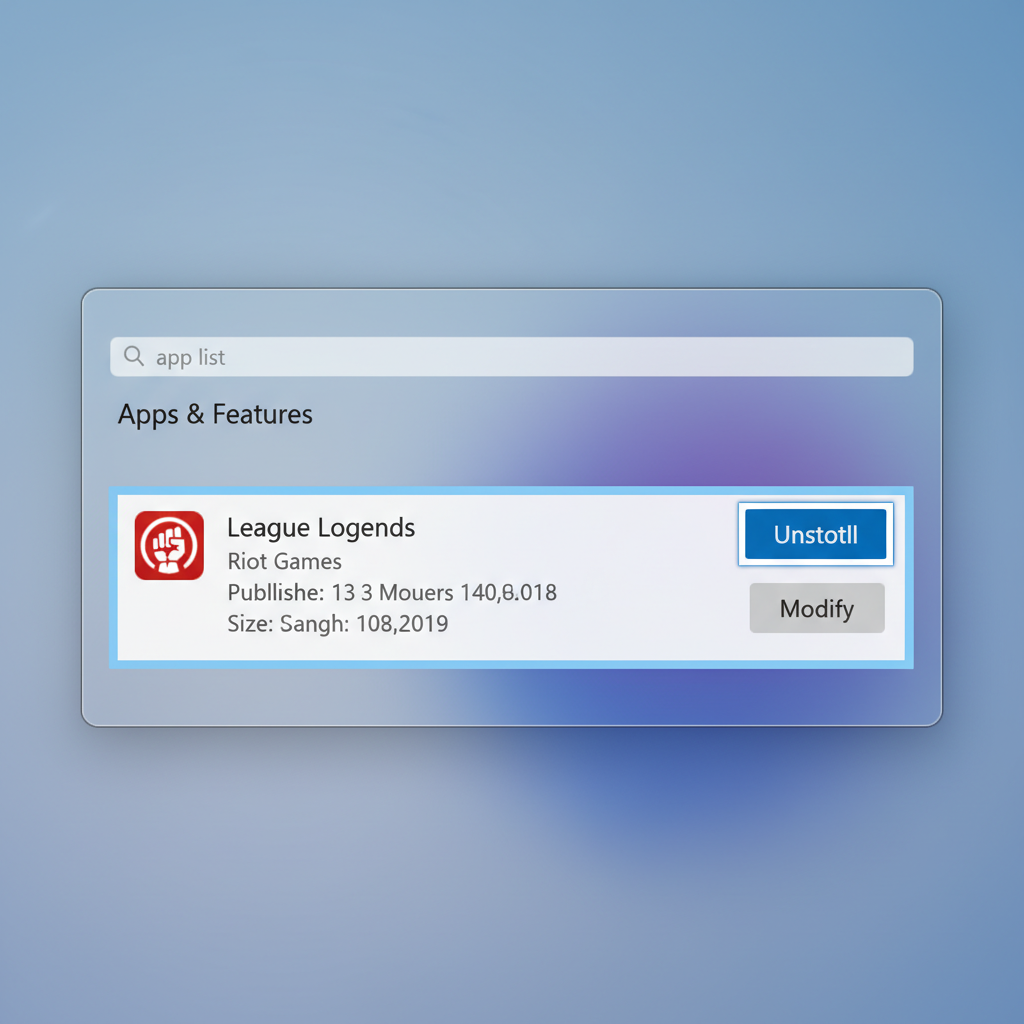
To uninstall League of Legends, open Windows Settings, go to Apps then Installed Apps, find League of Legends, and click Uninstall. On Mac, drag the League of Legends folder from Applications to the Trash. You’ll also want to manually delete leftover files in your Riot Games and AppData folders for a clean removal.
That’s the short version. But if you stop there, you’re leaving behind cached files, Riot Vanguard, and possibly the entire Riot Client. I uninstalled LoL last month after a 9-game loss streak (yes, nine) and found 4 GB of leftover data sitting in my AppData folder. So let’s do this properly.
According to Riot’s official support page, the recommended method starts with closing both LoL and the Riot Client. Sounds obvious, but Riot Client loves running in the background. Check your system tray.
How to Remove League of Legends on Windows (Step by Step)
Two methods work here. Pick whichever feels right.
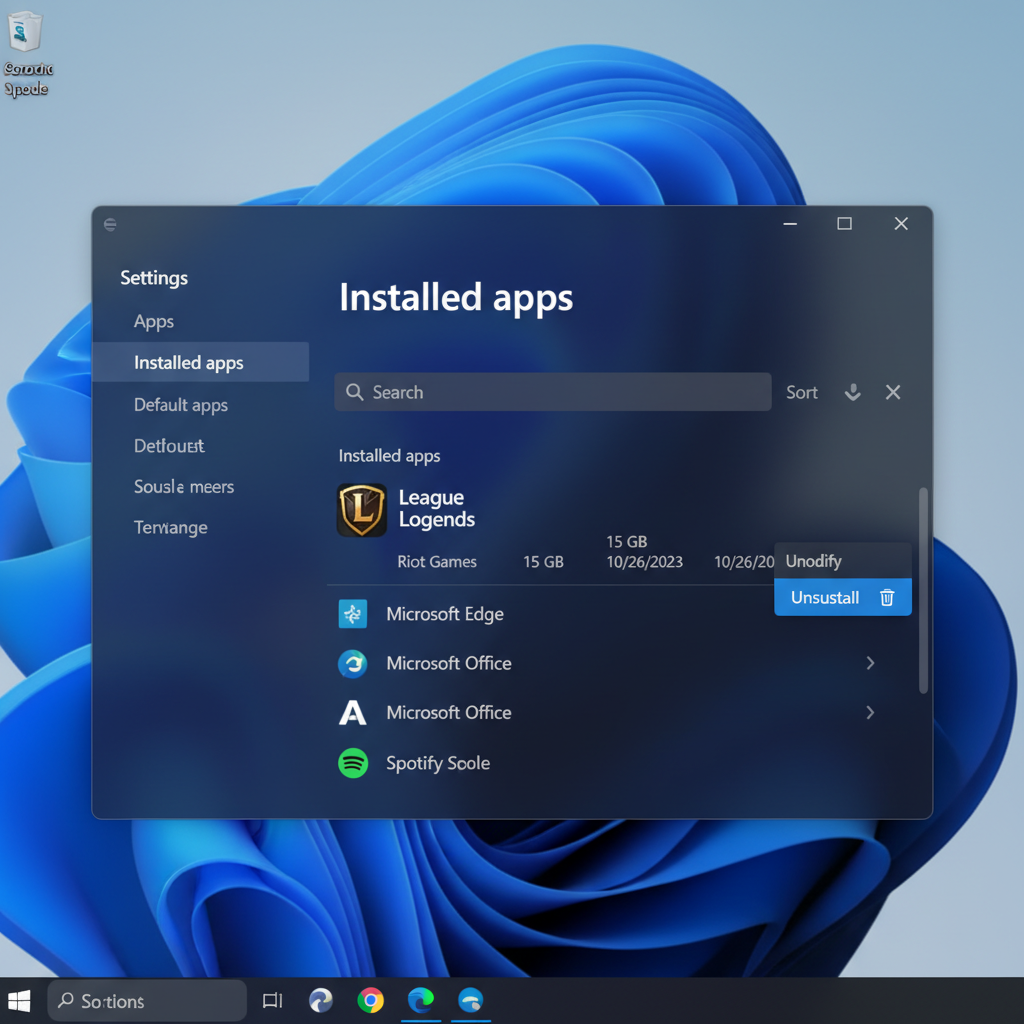
Method 1: Windows Settings
- Press Win + I to open Settings
- Click Apps, then Installed Apps (Windows 11) or Apps & Features (Windows 10)
- Scroll to League of Legends
- Click the three-dot menu and hit Uninstall
- Confirm the popup and wait for it to finish
Done. Mostly.
Method 2: Control Panel
- Open the Start menu, search Control Panel
- Click Uninstall a Program under Programs
- Find League of Legends in the list
- Click Uninstall at the top and follow the prompts
Both methods do the same thing. I prefer the Settings route because it’s two fewer clicks.
Cleaning Up Leftover Files
Here’s where most guides stop and where most people get it wrong. The uninstaller removes the core game files but doesn’t touch everything. You need to manually clear these locations:
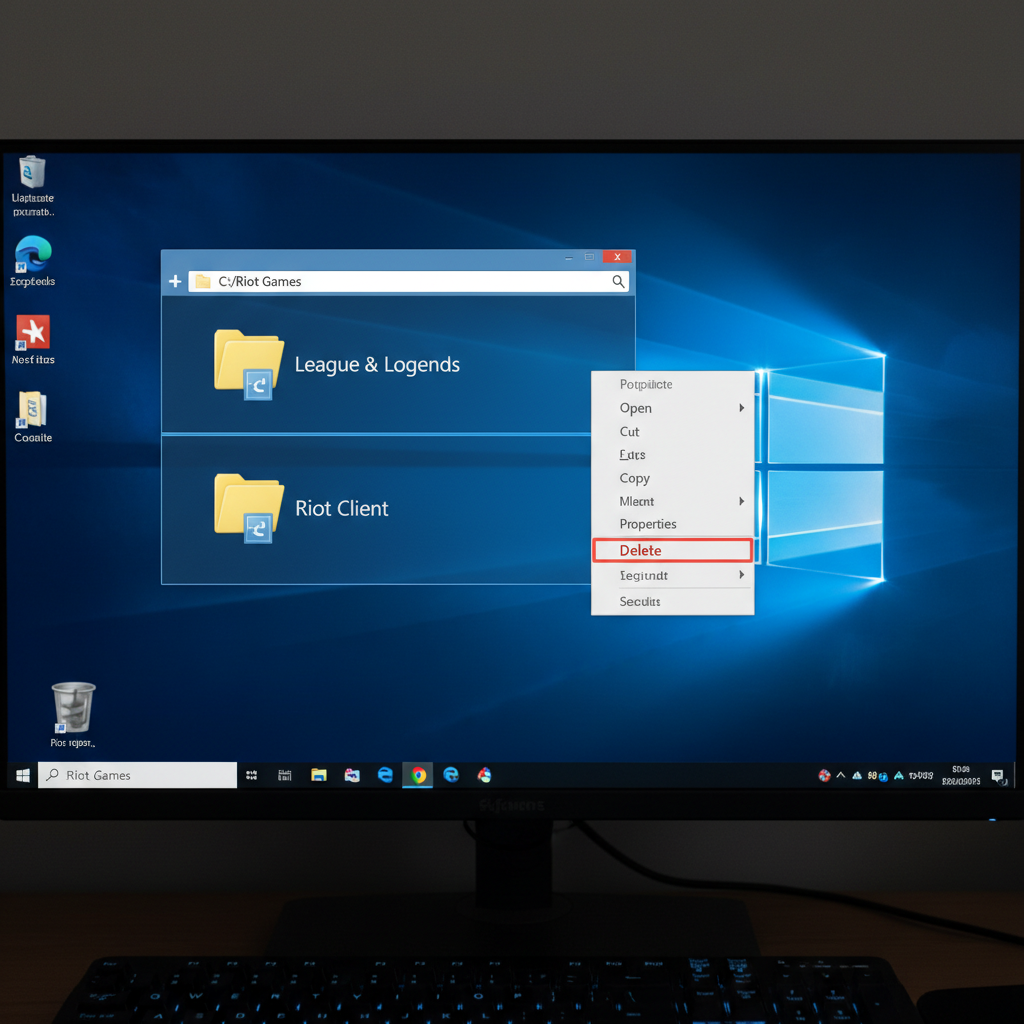
- C:\Riot Games\League of Legends , delete the entire folder if it’s still there
- %localappdata%\Riot Games — press Win + R, paste that path, delete the folder
- %appdata%\Riot Games — same process, different directory
Empty your Recycle Bin when you’re done. On my last cleanup I recovered about 4.2 GB total from these three spots.
Should You Uninstall Riot Vanguard Too?
This one depends. Riot Vanguard is the kernel-level anti-cheat that runs on your system at startup. It shipped with Valorant originally but now covers League too. If you don’t play any Riot games at all, remove it.
Go to Apps > Installed Apps, find Riot Vanguard, and uninstall it. Same process as the game itself. You can also uninstall the Riot Client if you’re completely done with Riot’s lineup.
Fair warning: Vanguard starts with your PC. I didn’t realize it was running for two weeks after I removed LoL. That’s two weeks of a kernel driver I didn’t need sitting in my boot sequence. Not great.
I think Riot should auto-remove Vanguard when you uninstall their last game on your system. They probably won’t, though (reinstall friction isn’t great for player retention).
How to Delete League of Legends on Mac
Mac users have it a bit simpler, but the leftover file problem is the same.
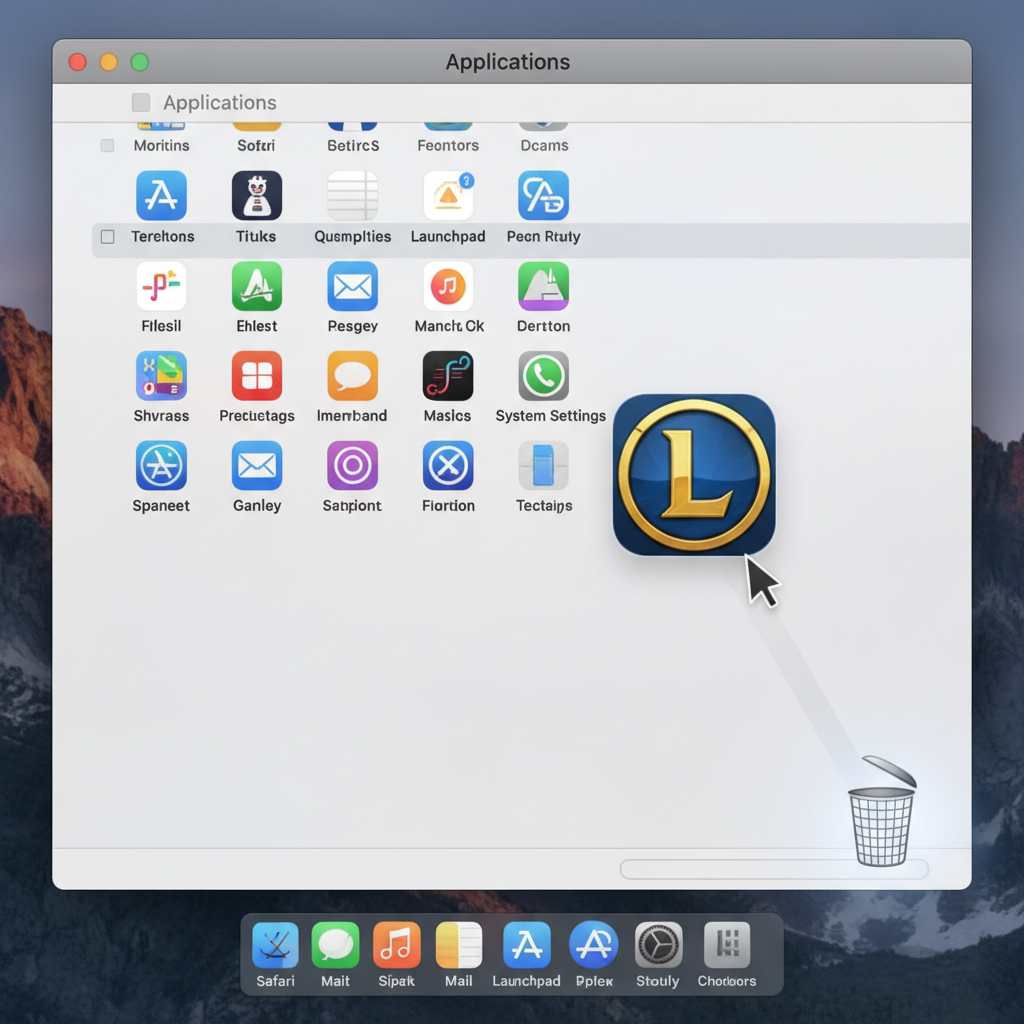
- Open Finder and go to Applications
- Find the League of Legends folder
- Drag it to the Trash
- Click Go in the Finder menu bar, then Go to Folder
- Type ~/Library/Application Support
- Delete any Riot Games folders you see
- Empty the Trash
That’s it. The Mac version is cleaner because there’s no Vanguard to worry about on macOS.
Will Uninstalling LoL Delete My Skins and Rank?
No. Your account data lives on Riot’s servers, not on your hard drive. Skins, champions, rank, match history, honor level: all of it stays tied to your Riot account. I’ve uninstalled and reinstalled LoL three times this season (don’t ask) and my account was exactly where I left it every time.
If you’re taking a break but plan to come back, your stuff is safe. And if you come back and want to skip the grind to get back to your old rank, LoL rank boosting exists for exactly that scenario.
Or if you’re done with your current account and want to start over clean, grabbing a fresh LoL smurf account is faster than leveling from scratch. Way faster.
Common Reasons People Uninstall (and What to Do Instead)
Tilted beyond repair. We’ve all been there. Nine-game loss streaks happen. Sometimes the best play is stepping away for a week. You don’t need to uninstall for that. Just close the client.
Storage problems. League takes up roughly 22 to 25 GB in 2026, according to multiple sources. With patch caches it can push toward 26 GB. If you’re on a small SSD, that matters. Uninstalling is the right call here.
Performance issues. A clean reinstall fixes more bugs than you’d expect. Corrupted game files cause random crashes, and the repair tool doesn’t always catch everything. Nuke it and start fresh.
Genuinely quitting. Respect. But statistically, you’ll be back. The League of Legends Wikipedia page notes the game still has over 100 million monthly players. They’re not all newcomers. Plenty of them uninstalled at least once.
If you do come back and feel lost about the ranked system, check out how ranked works in LoL to get up to speed on the current season structure.
FAQ
Will uninstalling League of Legends delete my account?
No. Your Riot account, skins, champions, rank, and match history are all stored server-side. Uninstalling just removes game files from your local drive. Log in on any machine and your account is right where you left it.
How much disk space does League of Legends take up?
A full install runs roughly 22 to 25 GB as of 2026, and it can creep toward 26 GB as patch caches accumulate. If you’re on a 256 GB SSD, that’s a real chunk of your storage.
Do I need to uninstall Riot Vanguard separately?
Yes. Vanguard runs as its own kernel-level service and doesn’t get removed when you uninstall LoL. Find it in your installed apps list and uninstall it manually. Skip this step if you still play Valorant.
Can I reinstall League of Legends after uninstalling it?
Of course. Download the Riot Client from leagueoflegends.com, install it, and log in. Your account, skins, and rank are all intact. The reinstall download is around 9 to 10 GB.
How do I uninstall League of Legends on Mac?
Open Finder, navigate to Applications, and drag the League of Legends folder to the Trash. Then check ~/Library/Application Support for leftover Riot Games folders and delete those too. Empty the Trash to finish the job.
The Bottom Line
Uninstalling League of Legends takes five minutes if you just run the uninstaller, and maybe ten if you clean up leftover files properly. Your account is safe no matter what. If you’re coming back later and want a headstart, Playplex’s LoL boosting services can pick up right where you left off.